
Do Robot Lawn Mowers Need WiFi? The Complete Guide
Most robot lawn mowers do not require WiFi to mow your lawn. They can operate fully autonomously using onboard sensors and boundary systems. However, WiFi unlocks smart features like app control, scheduling, and remote monitoring — making it a convenience, not a necessity.
🧠 Expert Summary
- Robot mowers work without WiFi by following physical boundary wires or GPS-based perimeter maps stored onboard.
- WiFi is required only for app-based scheduling, remote control, firmware updates, and smart home integration.
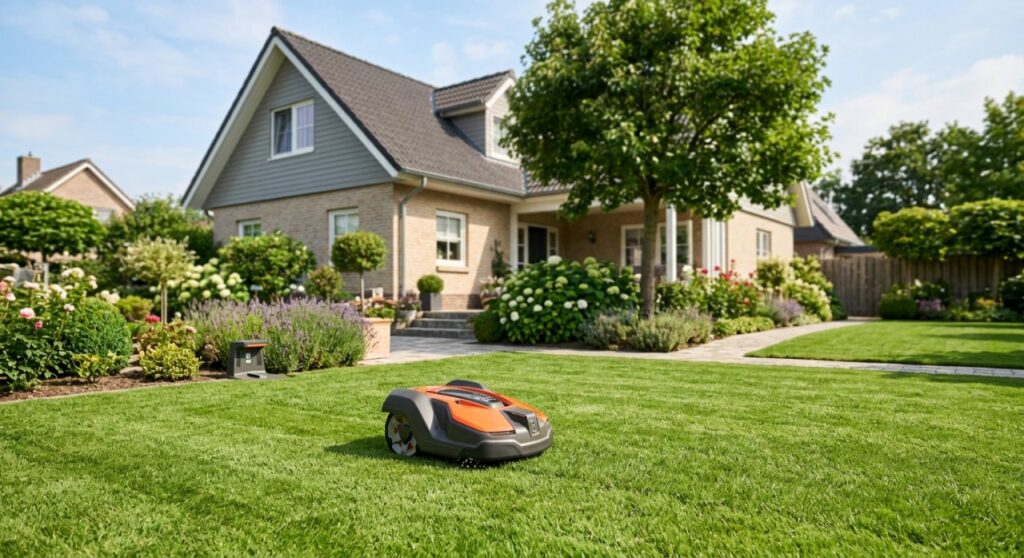
- Entry-level models (like the Husqvarna Automower 105) operate with zero connectivity — no app, no WiFi, no problem.
- Premium models (like Husqvarna Automower 450X or Worx Landroid L) use WiFi for advanced features but still mow autonomously without an active connection.
- If your lawn is simple and your schedule is predictable, a non-WiFi robot mower is a perfectly capable choice.
Step 1: Understand How Robot Mowers Work Without WiFi
Robot mowers are autonomous machines that don’t need the internet to cut grass.
They navigate using one of three systems — none of which require WiFi:
- Boundary wire systems: A physical wire buried around your lawn’s perimeter signals the mower where to stop.
- GPS/RTK navigation: Premium models use satellite positioning stored in onboard memory.
- Vision-based navigation: Some newer models use cameras and AI chips that process data locally, not in the cloud.
Once set up and programed via the onboard control panel, these mowers run their schedules independently — rain sensor, lift sensor, and all.
Key takeaway: WiFi connects your mower to you. It doesn’t connect your mower to your lawn.
Step 2: Identify Which Features Actually Need WiFi
WiFi adds convenience and control — it doesn’t power the core mowing function.
Here’s a clear breakdown of what works with and without WiFi:
| Feature | Without WiFi | With WiFi |
|---|---|---|
| Autonomous mowing | ✅ Yes | |
| Onboard schedule programming | ✅ Yes | ✅ Yes |
| Rain sensor pause | ✅ Yes | ✅ Yes |
| Theft alarm | ✅ Yes | ✅ Yes |
| App-based scheduling | ❌ No | ✅ Yes |
| Remote start/stop | ❌ No | ✅ Yes |
| Real-time GPS tracking | ❌ No | ✅ Yes |
| Firmware/software updates | ❌ No | ✅ Yes |
| Smart home integration (Alexa, Google) | ❌ No | ✅ Yes |
| Mowing history & lawn reports | ❌ No | ✅ Yes |
| Voice command control | ❌ No | ✅ Yes |
If you’re fine setting a weekly schedule once on the physical keypad, you can live without WiFi entirely.
Step 3: Know the Difference Between WiFi, Bluetooth, and Cellular Models
Not all “connected” robot mowers use WiFi — some use Bluetooth or cellular (4G/LTE) instead.
This matters because your connectivity options affect both setup requirements and long-term usability.
WiFi-Connected Models – Connect to your home’s 2.4 GHz or 5 GHz network
- Require your router’s signal to reach the lawn
- Examples: Worx Landroid, Husqvarna Automower Connect models, Mamotion Luba2
Bluetooth-Only Models – Connect directly to your phone within a short range (typically 10–30 meters)
- No home network required
- Useful for initial setup and occasional adjustments
- Examples: Some GARDENA Sileno entry models
Cellular (4G/LTE) Models – Use a built-in SIM card to communicate via mobile networks
- Work anywhere — no home WiFi needed at all
- Examples: Husqvarna Automower 450X with Automower Connect4G, Segway Navimow H series
- Usually come with a monthly subscription fee
No-Connectivity Models – Zero wireless features
- Fully controlled via onboard panel
- Examples: Husqvarna Automower 105, Robomow RC304
Step 4: Check Your Lawn’s WiFi Coverage Before Buying
If you plan to use a WiFi-connected mower, your router signal must reach theowing area.
This is one of the most overlooked setup issues. Here’s how to test it:
- Take your phone to the far corners of your lawn.
- Check your WiFi signal bars — anything below 2 bars is a problem.
- Run a speed test (use Speedtest.net) at the lawn’s edge. Consistent drops below 1 Mbps will cause connection issues.
- If signal is weak, consider a WiFi extender or mesh node placed near a window or outdoor outlet facing the garden.
- Some mowers (like Mamotion Luba 2) support Bluetooth bridging — your phone acts as a relay when direct WiFi isn’t available.
Pro Tip: Most robot mowers only need WiFi to sync commands and send status updates. They don’t stream data constantly, so even a weak but stable signal is often enough.
Step 5: Set Up a Robot Mower Without WiFi (Step-by-Step)
Setting up a non-WiFi robot mower is straightforward and takes2–4 hours depending on lawn size.
Here’s the standard process for a boundary-wire model like the Husqvarna Automower 105:
###5.1 Plan Your Boundary Wire Layout
- Walk your lawn and mark obstacles: flower beds, trees, garden furniture.
- Keep the wire at least 35 cm away from hard edges like walls or steps.
- Plan a guide wire from the charging station to help the mower return efficiently.
2 Install the Boundary Wire
- Use the included wire pegs to pin the wire flush to the ground.
- The wire will naturally sink into the grass within a few weeks.
- For immediate invisibility, bury it 5–10 cm deep using a flat-blade spade or lawn edger.
3 Set Up the Charging Station
- Place it on a flat, level surface with at least 2 m of open space in front.
- Connect it to a weatherproof outdoor power outlet.
- Run the guide wire from the station outward and connect it to the boundary loop.
4 Program the Onboard Schedule
- Use the control panel keypad to set mowing days and start times.
- Most models let you set up to 2–3 daily sessions.
- Set the cutting height (typically 20–60 mm depending on grass type).
- Enter your PIN code to activate the theft lock.
5 Run the First Test Mow
- Select “Manual” mode and watch the mower for first 5–10 minutes.
- Confirm it turns back correctly at every boundary point.
- Check that it returns to the charging station cleanly after the test run.
Step 6: Set Up a WiFi-Connected Robot Mower (Step-by-Step)
WiFi setup adds20–30 extra minutes to the process but unlocks full remote control.
Using the Worx Landroid L as an example:
1 Complete the Physical Installation First
- Follow Steps 5.1 through 5.3 above — the physical setup is identical.
2 Download the Manufacturer’s App
- Worx: Download the Worx Landroid app (iOS/Android)
- Husqvarna: Download Automower Connect
- Mammotion: Download the Mammotion app
3 Create Your Account and Pair the Mower
- Create an account in the app.
- Put the mower in pairing mode (usually via the onboard menu under “Settings > Connect”).
- The app will search for your mower via Bluetooth first, then transition to WiFi.
4 Connect to Your Home WiFi
- Select your 2.4 GHz network (most mowers don’t support 5 GHz — check the manual).
- Enter your WiFi password in the app.
- The mower will confirm connection with a bep or LED indicator.
5 Configure Schedules and Zones in the App
- Set your weekly mowing schedule with specific days, times, and duration.
- If your model supports zone mapping, draw your lawn zones directly in the app.
- Enable weather intelligence features if available — these auto-skip mowing in rain or extreme heat.
6 Test Remote Control
- Tap “Start” in the app while standing in your lawn.
- Verify the mower begins mowing and that you can stop it remotely.
- Check that push notifications are working (low battery alerts, stuck mower alerts, theft alerts).
Step 7: Decide — Do You Actually Need WiFi?
Answer three questions to figure out the right connectivity level for your situation.
| Your Situation | Recommendation |
|---|---|
| Simple rectangular lawn, regular schedule | No WiFi needed — save money, keep it simple |
| Frequently away from home, need remote access | WiFi model — remote start/stop is genuinely useful |
| Large or complex lawn with multiple zones | WiFi or cellular model — zone management needs the app |
| Weak WiFi signal at lawn edge | Cellular (4G) model or no-WiFi model |
| Rental property or second home | Cellular model — most practical for remote locations |
| Tech-savvy, want smart home integration | WiFi model with Alexa/Google Home support |
| Budget is the priority | No-WiFi model — lower upfront and running costs |
Pro Tips for Robot Mower Connectivity
- Use a 2.4 GHz-only network name (SSID) for your robot mower if your router broadcasts both 2.4 GHz and 5 GHz under the same name. Dual-band confusion is a common pairing failure cause.
- Place the charging station near the house when possible — it typically sits closest to your WiFi source, and the mower only needs WiFi when docked or near the station.
- Cellular mowers don’t need a separate plan — brands like Husqvarna include the SIM and data plan in the product price for a set period (usually 1–3 years), after which a small renewal fee applies.
- Keep the app updated, not just the mower’s firmware. App updates often fix connectivity bugs that firmware updates alone won’t solve.
- WiFi outages don’t cancel your mowing schedule. The mower’s onboard memory holds your programed schedule and runs it independently even when the network is down.
Common Mistakes to Avoid
- Buying a WiFi model when your garden has no signal: Always test signal strength at the lawn’s edge before purchasing.
- Connecting to a 5 GHz network: Most mowers only support 2.4 GHz. Using the wrong band will result in a failed pairing that looks like a hardware fault.
- Assuming “no WiFi” means “no features”: Entry-level mowers without connectivity still have rain sensors, PIN locks, lift sensors, and programmable schedules. They’re not stripped-down products.
- Forgetting firmware updates on non-WiFi models: These mowers still receive updates — you just apply them manually via a USB cable or SD card, or through a dealer service. Don’t skip them.
- Over-relying on app scheduling without a backup plan: If your phone breaks or the app is discontinued, a WiFi-only setup can leave you scrambling. Always know how to operate your mower from the physical panel.
Frequently Asked Questions
Do robot lawn mowers work without internet?
Yes — all robot lawn mowers canow without an active internet connection. WiFi and internet access are only needed to sync app-based commands, receive firmware updates, or use smart home integrations. The mower’s core navigation and scheduling functions are fully onboard.
What happens if my WiFi goes down while my robot mower is running?
The mower will continue its current mowing session uninterupted. It uses its onboard schedule and navigation system. You’ll temporarily lose remote monitoring and app control, but they restore automatically once your network comes back online.
Can I use a robot mower in a house with no WiFi at all?
Absolutely. A non-connected model like the Husqvarna Automower 105 or Robomow RC304 is designed specifically for this. You program it once via the onboard keypad and it runs its schedule indefinitely with no network required.
Does a robot mower need WiFi for GPS navigation?
No — GPS and WiFi are separate systems. GPS uses satellite signals, not your home network. Some mowers use RTK-GPS for precise navigation — this works anywhere with a clear sky view, completely independent of WiFi.
Are there robot mowers with 4G/cellular that don’t need home WiFi?
Yes. Models like the Husqvarna Automower 450X with4G Connect and Segway Navimow H series use built-in SIM cards. You get full app control and remote access without neding your home network — ideal for remote properties or large estates.
Conclusion
Robot lawn mowers do not need WiFi to function. Every model on the market — from entry-level to premium — can mow autonomously using onboard programming and physical or GPS-based navigation systems.
WiFi adds genuine value if you travel often, manage multiple zones, or want your mower integrated into a smart home. But for most homeowners with a straightforward lawn and a predictable schedule, a non-WiFi model does the job just as well — often more reliably, with fewer setup headaches.
The bottom line: choose connectivity based on how you actually live, not the feature list on the box.
Start by testing your lawn’s WiFi signal. Then match your lifestyle to the connectivity level that makes sense — and let the mower do the rest.